Fix Permission Gaps Before Copilot Finds Them
Why Permissions Matter More with Copilot
If your Microsoft 365 permissions haven’t been audited in months, Copilot just became your biggest risk. The AI agent happily surfaces anything users can see – including files that were overshared or never locked down. We’ll cover the quick checks, common traps, and a rollout plan you can start Monday.
Here’s the brutal truth: when Copilot reveals something it shouldn’t, it’s not misbehaving. Your permissions already allowed that user to see it.
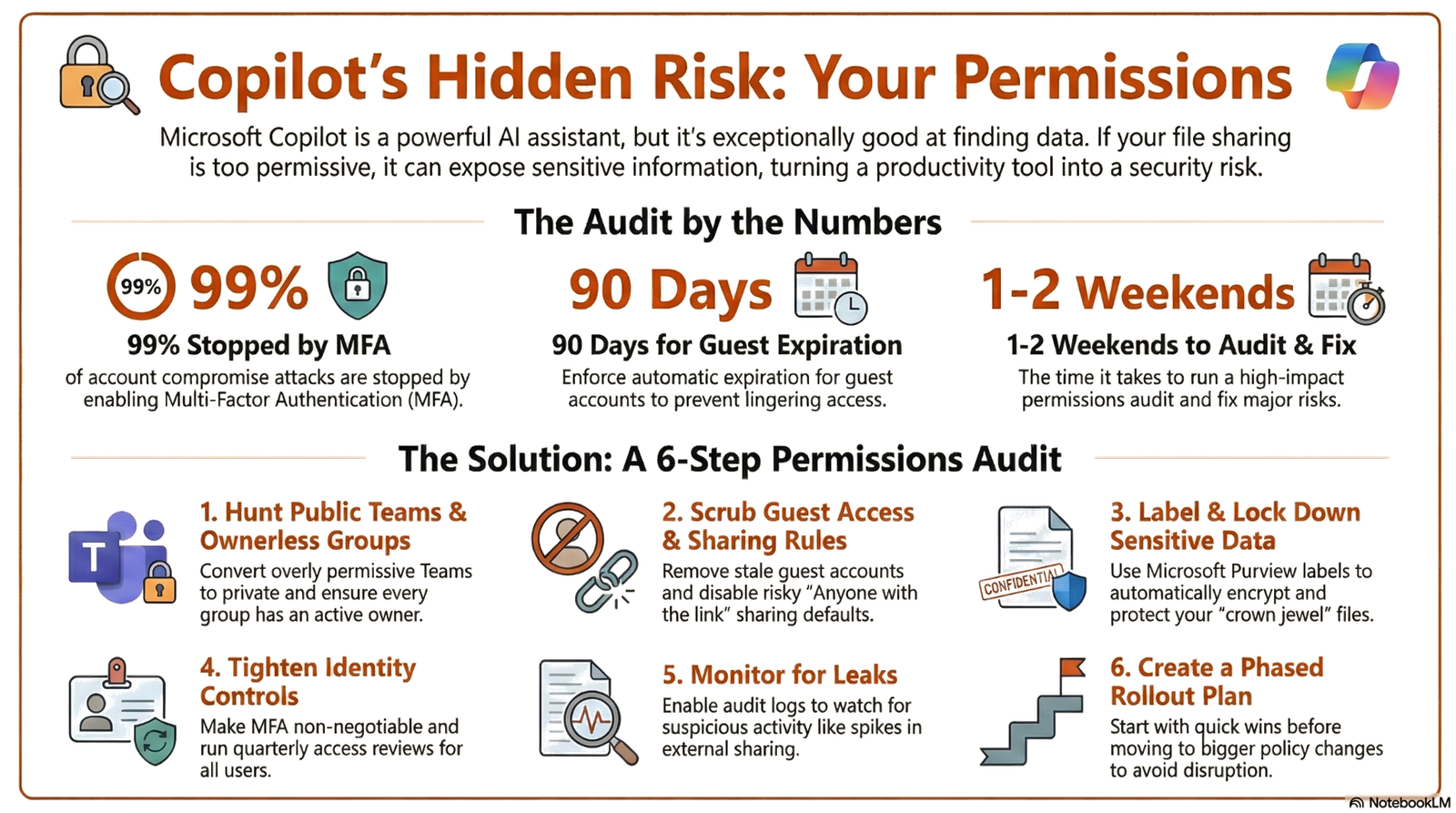
This post walks you through a six-step audit that takes a weekend and prevents the headaches that take months.
According to Microsoft’s security documentation, the best defense is knowing what you’ve actually shared.
What Happens When Copilot Meets Oversharing?
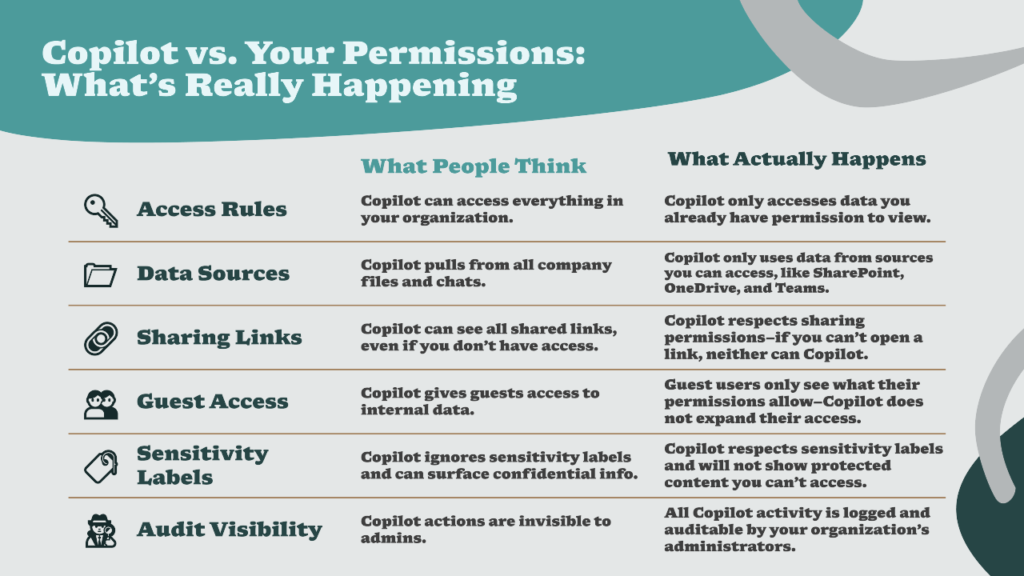
Copilot operates within your existing permission boundaries – nothing more, nothing less. It’s not hacking into restricted files or breaking into cabinets it shouldn’t access. Instead, it’s an exceptionally fast bloodhound that finds relevant data in the pile of content your permissions already made available.
An employee asks Copilot, “What are our Q4 margin projections?” Copilot surfaces them from a SharePoint site labeled “Finance -Confidential.” The employee doesn’t work in Finance. They have no business seeing that data. But the intern who set up the site three years ago left it wide open to “Everyone in Organization.” Copilot didn’t break security, your permissions already gave that employee the key. 😨
This is why Copilot acts like the overly honest friend who points out spinach in your teeth. In this case, the “spinach” is overshared data. Before Copilot, a snooping employee might not have known where to look. Now? Copilot finds it in seconds.
Pro Tip: Think of your M365 permissions audit as spring cleaning for security. You’re finding what’s loose, tightening it, and setting up guardrails so it stays tight.
The 6-Step Microsoft 365 Permissions Audit Checklist

Time to roll up our sleeves. Below is a six-step checklist to find and fix oversharing risks in your M365 environment. Think of it as a spring cleaning for your permissions. We’ve kept it plain-English and practical, so a busy IT leader (that’s you) can skim and implement quickly. Ready? Let’s audit:
Step 1: Hunt Down Public Teams and Ownerless Groups
Start with Teams that anyone in your organization can join without permission. Public Teams are fine for cat memes and cafeteria menus. They’re not fine for anything else. Switch them to private or restrict membership unless the content is truly meant for everyone.
Then hunt for ownerless Teams-groups where no one is actively managing access. An ownerless Team is a ticking time bomb. Nobody’s minding the store, and access sprawls unchecked.
Example: One company discovered a Team labeled “All-Hands 2024” was still public after the meetings ended. Anyone new could join and access past salaries, restructure plans, and executive Q&A notes—information that was supposed to be closed-loop.
IT Note: Use the Microsoft Entra Access Reviews feature to automate quarterly membership validation.
Step 2: Scrub Guest Access and External Sharing Rules
Every guest account is a potential weak link if you’re not watching it. Not because guests are untrustworthy, but because they’re harder to track than internal users.
Review external sharing settings in SharePoint and OneDrive. You have choices: allow sharing with anyone, restrict to your domain only, or require explicit approval before sharing with external people. The right choice depends on your business. Just make it intentional, not accidental.
Example: Guest access that quietly lingered.
An HR team invited a payroll vendor as a guest for a three‑month rollout. Two years later, the guest account was still active and still had access to a SharePoint library with salary and benefits data. Fix: Enforce 90‑day guest expiration, require re‑approval for extensions, and include guests in quarterly access reviews.
Did You Know? Most accidental breaches happen not because of complex hacks, but because someone shared a file with “Anyone with the link” and forgot about it three months later. Expiration dates turn this into a non-issue.
Step 3: Label and Lock Down Sensitive Data
Not all data needs the same level of protection, but your most sensitive data needs a backstop. Even if permissions slip, your crown jewels should have an extra lock.
Use Microsoft Purview Sensitivity Labels to classify documents as “Confidential” or “Highly Confidential.” Pair labels with automatic encryption or external-sharing blocks. That way, when someone overshares by accident, the label’s protections kick in.
Set up Data Loss Prevention (DLP) policies to catch obvious no-nos, like someone sharing a file with 10,000 credit card numbers. DLP can warn users or block the action outright when it detects sensitive info crossing safe boundaries.
Example: A manufacturing company set up DLP to scan outbound emails. Within a week, it caught a vendor manager about to send a spreadsheet with supplier pricing and costs to a Gmail account. Blocked. Incident averted.
Step 4: Tighten Microsoft Entra ID (Your Identity Gatekeeper)
Think of Entra ID as the bouncer at your M365 club. It manages who gets in, with what keys, and how long they can stay.
Make multi-factor authentication (MFA) non-negotiable for everyone, especially admins and anyone with access to sensitive data. Use Entra Access Reviews to force department leads to confirm-quarterly-that each user still needs their current access. People leave teams, move roles, and get promoted. Access rules don’t auto-update.
IT Note: Most ransomware attacks start with a single compromised user account. MFA stops 99% of those attacks cold. The 15-minute setup is non-negotiable.
Step 5: Monitor Copilot Usage and Permission Events
Once you’ve fixed the leaks, you need to watch for new ones. Enable audit logs in Microsoft Purview and set up alerts for suspicious activity.
Watch for spikes in external sharing, new Teams made public, bulk permission changes, or large file downloads. Review Copilot usage logs-you’ll see what users are asking it to summarize. Unusual queries might surface permission problems you haven’t caught yet.
Make it a policy: every quarter, site owners and department leads review who has access to their content. This is where permissions drift gets caught before it becomes a breach.
Example: Copilot exposes a quietly overshared pricing folder
A sales manager asked Copilot, “Summarize our discount strategy and margin targets.” Copilot generated a detailed answer by reading a SharePoint folder that had been set to “Everyone except external users” three years ago during a pricing project. That folder included discount tiers, margin targets, and internal pricing playbooks that most employees were never expected to use in their day-to-day work. Copilot didn’t bypass security, it simply used the broad access that was already configured for that folder. Fix: Lock that folder down to a dedicated Finance/Sales security group only, then apply a “Confidential – Internal Only” sensitivity label so the content is encrypted and protected even if someone loosens permissions again in the future.
Did You Know? Permissions drift is invisible until you look. A person moves to Finance, but their old Marketing access never gets revoked. Three years later, they have access to 47 systems. An audit catches it in one afternoon.
Step 6: Create a Rollout Plan (Don’t Try to Fix Everything at Once)
An audit is only useful if you act on it. The best teams phase the work so nothing breaks and no one panics.
Pro Tip: Document everything. When an executive asks “Why can’t we share this with that vendor?” you’ll have a clear answer backed by policy, not guesswork.
Why This Matters: The Real Cost of Oversharing
You don’t control what Copilot reveals—you only control what your permissions allow. A tight permissions model means Copilot becomes a productivity tool. A loose one means Copilot becomes an audit bomb waiting to explode.
The six-step checklist above catches the most common oversharing pitfalls before they catch you.
Here’s the quick summary:
- Hunt down public Teams and ownerless groups
- Scrub guest access and external sharing rules
- Label and lock down your most sensitive data
- Tighten Entra ID identity controls
- Monitor Copilot usage and permission events
- Create a phased rollout plan (start this week, not next month)
Follow this plan, and you’ll spend a weekend now instead of months explaining what went wrong later.
The stakes are real: one overshare can become a breach, a scandal, or a compliance fine. But with this audit in place, Copilot stops being a risk and becomes the honest feedback you needed all along.
What’s Your Biggest Permission Gap?
Is it public Teams lingering from old projects? Guest access that’s never been audited? Sensitive files sitting in SharePoint with no protection?
Tell us in the comments-which of these steps will have the biggest impact on your M365 environment? Your answers help shape the next guides and templates created for this series.
Ready to get started? Grab your team, download the checklist, and block out a Friday afternoon. You’ll walk away with a cleaner tenant, fewer surprises in Copilot, and a simple review rhythm you can repeat every quarter.
At AdaptSphere, the focus is on practical security for busy admins. A lightweight permissions audit today means your AI tools shine for the right reasons tomorrow. When you want a second set of eyes, AdaptSphere can also run a Microsoft 365 permissions audit with you and help translate this checklist into a phased rollout plan your leadership will actually approve.
📌GRAB THE MICROSOFT 365 PERMISSIONS AUDIT CHECKLIST
- No email gate. Instant download you can hand directly to IT.
- 6‑step, one‑page checklist that matches this blog.
- Built on Microsoft-native tools (Entra, Purview, Teams, SharePoint).
- Print it, highlight it, and finish a first-pass audit in about 30–60 minutes.
Practical, Microsoft-native, and built for busy admins.