Copilot Control System for SMBs: 4 Steps to Stop Oversharing in Microsoft 365
If you’re using Microsoft 365 Copilot, there’s a good chance your AI assistant has access to files it shouldn’t see. Maybe it’s pulling up last year’s salary spreadsheet when someone asks about the budget. Or showing confidential customer contracts to the wrong team member.
This happens because Copilot can only see what your users can already access—and most companies have been oversharing files for years without realizing it.
The Copilot Control System (CCS) is Microsoft’s framework to fix this problem. It helps small and medium-sized businesses lock down sensitive data, control who sees what, and track how AI is being used – all in about 30 days.
Here’s how to do it without hiring a security consultant or spending months on implementation.
What Is the Copilot Control System?
The Copilot Control System is a three-part framework that secures your AI environment:
Security & Governance – Stops sensitive data from leaking through Copilot by using Data Loss Prevention (DLP) rules and identifying overshared files.
Management Controls – Sets clear policies about who can use AI agents and what they can access.
Measurement & Reporting – Tracks adoption rates, blocked content, and whether your controls are working.
Think of it like installing a security system in a library. You identify your rarest books, tag them with sensors, limit who gets a keycard, and check the logs weekly to see if any alarms went off.
Why SMBs Can’t Ignore This
Most small businesses assume AI security is just for enterprises. But Copilot doesn’t care about company size—it surfaces whatever your employees can already see in SharePoint, Teams, and OneDrive.

Common problems CCS solves:
If your team has been clicking “Share with anyone” for convenience, Copilot will expose that habit immediately.
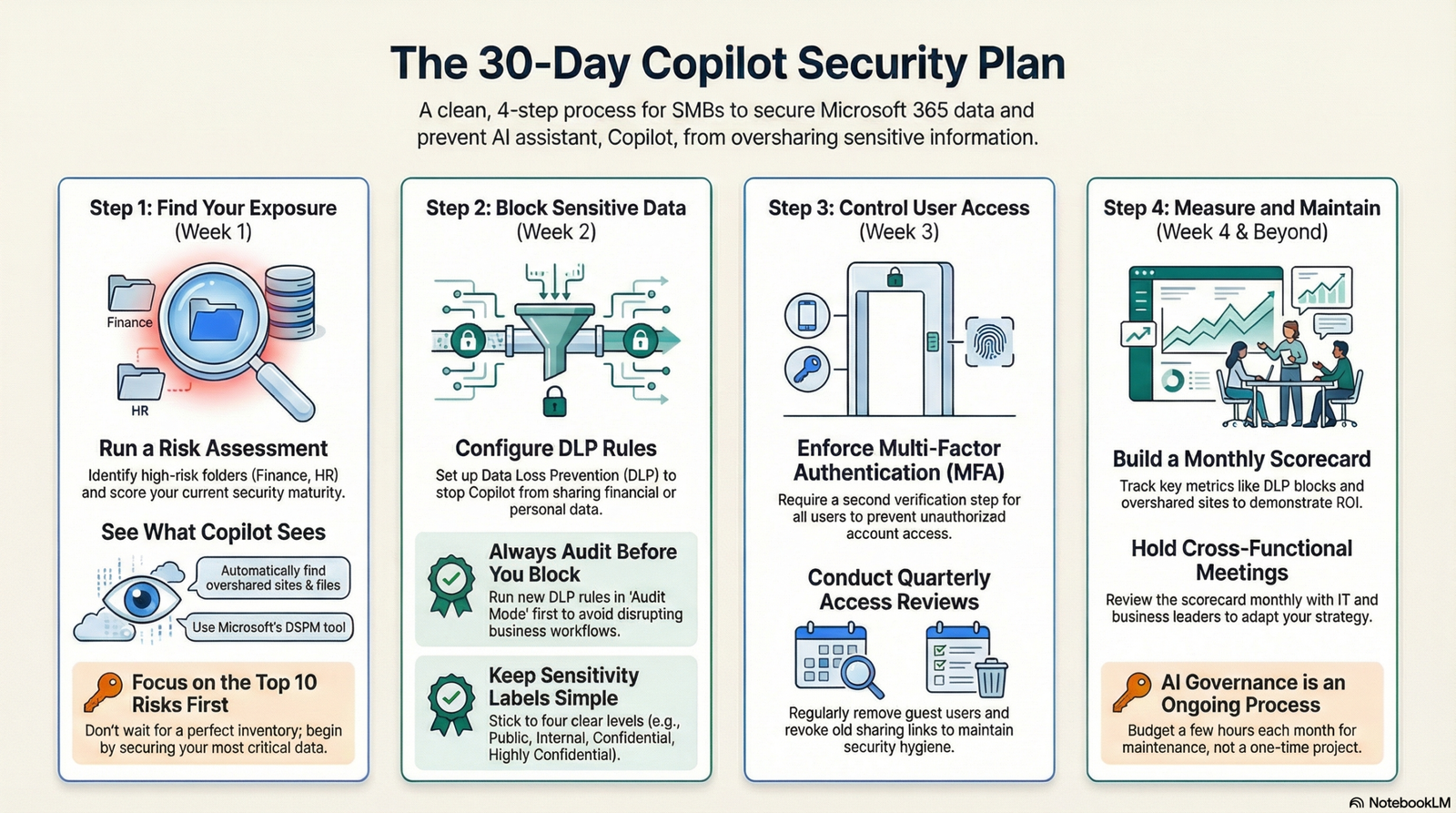
Step 1 – Find Out Where You’re Oversharing (Week 1)
Before you lock anything down, you need to know what’s exposed.
Run a Risk Assessment
Start with three questions:
- Who has admin access? You’ll need Global Admin, Compliance Admin, and Identity Admin roles. If only one person has these, you’re already behind.
- Where is your sensitive data? Map out high-risk folders: Finance drives, HR personnel files, legal contracts, customer databases.
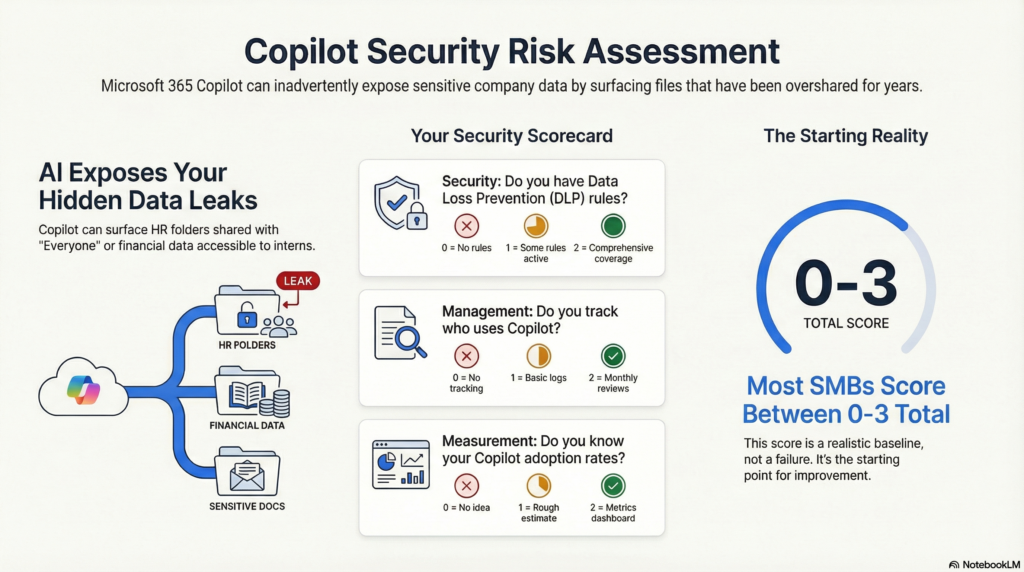
- What’s your current maturity score? Rate yourself 0–2 in three areas:
- Security: Do you have DLP rules active? (0 = No, 1 = Some, 2 = Comprehensive)
- Management: Do you track who uses Copilot? (0 = No tracking, 1 = Basic logs, 2 = Monthly reviews)
- Measurement: Do you know adoption rates? (0 = No idea, 1 = Rough estimate, 2 = Dashboard with metrics)
Most SMBs score between 0–3 total. That’s fine—you’re starting from reality.
Use DSPM to See What Copilot Sees
Microsoft’s Data Security Posture Management (DSPM) scans your environment and flags problems:
- Sites shared with “Everyone”
- Files with no sensitivity labels
- External sharing enabled on confidential folders
Turn this on in the Microsoft Purview compliance portal. Within 24 hours, you’ll get a report showing exactly which SharePoint sites are overshared.
Quick win: Look for finance or HR folders shared with 500+ employees. Those should only be visible to 5–10 people.
Common Mistakes in Week 1
Mistake #1: Waiting for the “perfect” inventory before starting. You’ll never have complete documentation. Focus on the top 10 highest-risk folders first.
Mistake #2: Skipping the maturity score. This seems like busywork, but you’ll need it in Month 3 to prove ROI to leadership.
Mistake #3: Doing this alone. Pull in at least one person from IT and one from HR or Finance. You need someone who knows where bodies are buried (figuratively).
Step 2: Block Sensitive Data from Copilot (Week 2)
This is where you set up Purview DLP for Copilot – the feature that prevents AI from sharing your most sensitive information.
Configure DLP Rules
DLP rules tell Copilot: “If someone asks about content that contains X, don’t show it.”
Start with these three rules:
- Financial data: Block content containing credit card numbers, bank account numbers, tax IDs.
- Personal information (PII): Block Social Security numbers, passport numbers, driver’s license numbers.
- Health records: Block anything tagged as medical information (if you handle patient data).
Set these to Audit Mode first – don’t block yet. Run them for 1-2 weeks to see what they catch. This prevents disrupting business workflows. DLP blocks based on sensitive information types and sensitivity labels, not user permissions. For example, if a file contains credit card numbers and you have a DLP rule blocking financial data, Copilot won’t summarize it – even if the user is the CFO authorized to view it. Adjust DLP rules during audit mode to allow Copilot access to content marked Confidential-Finance while still blocking Highly Confidential data, ensuring you secure sensitive information without breaking legitimate work.
Example: A marketing manager asks Copilot to “summarize Q4 results.” If your CFO’s detailed spreadsheet has credit card data buried in it, DLP will flag it in Audit Mode. You can then either clean up the file or adjust the rule before switching to Block Mode..
Common Mistakes in Week 2
Mistake #1: Jumping straight to Block Mode on DLP rules. This causes panic when sales reps can’t access legitimate client files. Always audit first.
Mistake #2: Creating too many label categories. Four levels are enough. Seven categories just confuse people.
Mistake #3: Not communicating changes. Send a company-wide email explaining why files might suddenly be labeled or blocked. Frame it as “protecting everyone’s work” not “we don’t trust you.”
Note on DLP for Copilot Status: Purview DLP for Copilot prompts is currently in Public Preview (as of November 2025) with General Availability expected in March or April 2026. During the preview phase, some DLP behavior for Copilot may change before final release. Always test DLP rules in a pilot environment first before rolling out broadly, and monitor Microsoft TechCommunity announcements for updates to DLP capabilities.
Step 3 – Control Who Gets Access (Week 3)
Security controls only work if you know who’s logging in.
Enforce Multi-Factor Authentication (MFA)
MFA adds a second verification step (like a text code or app notification) when someone signs into Microsoft 365.
Target: 100% enrollment for all employees.
How to do it:
- Go to Azure AD > Security > MFA
- Enable for all users, not just admins
- Give people a 2-week heads-up to set it up
- After 2 weeks, enforce it—no MFA, no access
Quick win: Start with your 5 highest-risk accounts (CEO, CFO, IT admins). Get them enrolled today.
Review Access Quarterly
Every three months, run a cleanup:
- Remove guest users who haven’t logged in for 90+ days
- Check SharePoint permissions—does the marketing intern still have Finance folder access from a project last year?
- Revoke old external sharing links (especially “Anyone with the link” invites)
Real example: A consulting firm discovered 43 external contractors still had access to client files – from projects that ended 18 months ago. One quarterly review caught it.
Common Mistakes in Week 3
Mistake #1: Requiring MFA but not explaining it. People will call IT support 100 times. Send a 2-minute video showing how to set it up on their phones.
Mistake #2: Doing access reviews once and forgetting about them. Put a recurring calendar reminder for every 90 days.
Mistake #3: Not having a rollback plan. If MFA locks everyone out (rare but possible), you need a documented process to temporarily disable it while you fix the issue.
Step 4 – Measure What’s Working (Week 4 and Beyond)
You’ve set up controls. Now track whether they’re doing anything.
Build a Monthly Scorecard
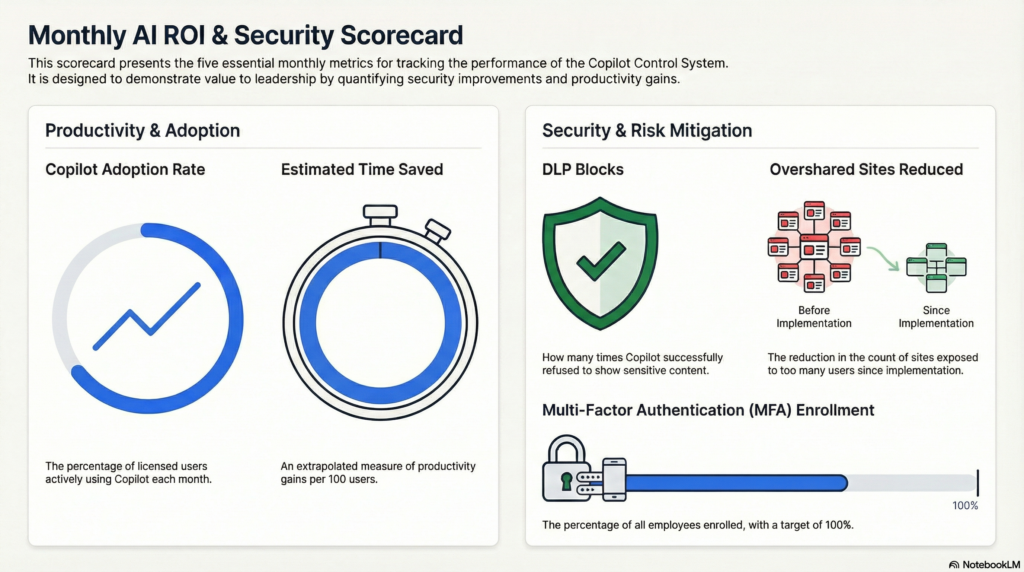
Track five numbers every month:
- Copilot adoption rate – What percentage of licensed users are actually using it?
- DLP blocks – How many times did Copilot refuse to show sensitive content?
- MFA enrollment – Are you still at 100%?
- Overshared sites – Are you reducing the count from Month 1?
- Time saved per 100 users – Ask 10 people how much time Copilot saved them this month, then extrapolate.
Why this matters: In Month 3, your CFO will ask if Copilot is worth the cost. These five numbers give you the answer.
Hold a Monthly Cross-Functional Meeting
Schedule a 60-minute meeting with:
- IT lead (to review technical metrics)
- Business owner (to hear user feedback)
- Operations manager (to flag friction points)
Agenda:
- Review the scorecard (15 minutes)
- Discuss what’s working (15 minutes)
- Fix what’s broken (20 minutes)
- Plan next month’s improvements (10 minutes)
Real example: One company discovered their “Confidential” label was blocking too many files. They created a new “Confidential – Sales” sublabel that Copilot could access, solving the problem without weakening security.
Extend Governance Beyond Month 1
After your first 30 days, expand to:
- Copilot Studio agents (custom AI tools your team builds)
- Outlook Copilot (email summarization and drafting)
- Third-party AI apps connecting to your Microsoft 365 data
The framework stays the same: assess risk, deploy controls, measure results.
Common Mistakes in Measurement
Mistake #1: Tracking vanity metrics. “We have 500 sensitivity labels applied!” means nothing if they’re all on public marketing PDFs.
Mistake #2: Waiting until something breaks to check logs. Review your audit logs weekly, not when there’s a crisis.
Mistake #3: Treating this as a one-time project. AI governance is ongoing. Budget 2–4 hours per month for maintenance..
What to Do If Something Goes Wrong
Even with careful planning, controls sometimes cause problems.
Quick Rollback Reference
Keep this checklist handy:
If DLP blocks too much:
- Switch the rule back to Audit Mode
- Review the last 50 blocked incidents
- Adjust the rule to be more specific
- Re-enable Block Mode after testing
If MFA locks people out:
- Temporarily exclude affected users
- Have them reset their authentication method
- Re-add them once confirmed working
If sensitivity labels confuse people:
- Create a one-page guide with examples of each label
- Hold a 15-minute lunch-and-learn
- Add label descriptions directly in Microsoft 365 (this is a setting)
The golden rule: It’s better to temporarily relax a control than to have your entire sales team unable to work.
Real Results from SMBs Using CCS
Here’s what companies are seeing after 90 days:
A 120-person accounting firm:
- Reduced overshared sites from 89 to 12
- Blocked 340 attempts to share client tax returns through Copilot
- Saved 4 hours per accountant per week (mostly from Copilot summarizing audit trails)
A 50-person consulting company:
- Caught 3 external contractors still accessing client data from old projects
- Prevented a financial presentation from leaking to a competitor (DLP flagged it when someone tried to forward it)
- Increased MFA enrollment from 60% to 100% in 10 days
A 200-person manufacturing company:
Implemented labels and DLP in 3 weeks, preventing IP theft risk
Discovered their entire engineering folder was shared with “Everyone including guests”
Identified 1,200 unlabeled CAD files containing proprietary designs
Frequently Asked Questions
What is Purview DLP for Copilot?
Purview DLP (Data Loss Prevention) for Copilot is a feature that stops your AI assistant from sharing sensitive information. When someone asks Copilot a question, DLP checks if the answer would include blocked content—like credit card numbers, Social Security numbers, or health records. If it would, Copilot refuses to answer and logs the attempt.
Think of it as a filter that sits between Copilot’s AI brain and your company’s data. It works automatically once configured.
How long does it take to implement the Copilot Control System?
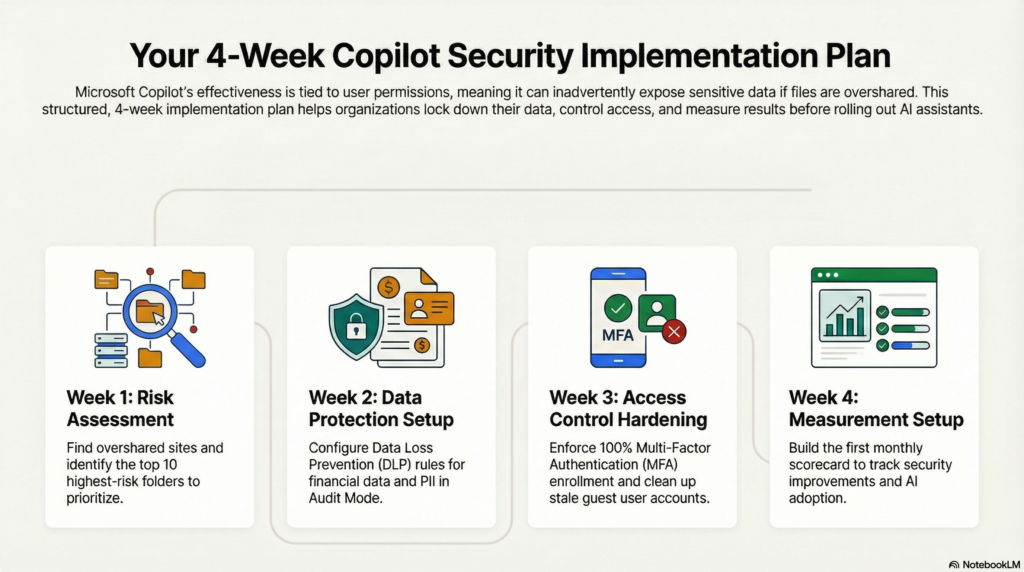
The standard implementation takes 30 days if you follow the week-by-week playbook:
- Week 1: Risk assessment
- Week 2: DLP and labels
- Week 3: MFA and access reviews
- Week 4: Measurement setup
Most SMBs can do this with 5–10 hours of work per week. Larger companies (200+ employees) might need 6–8 weeks if they have complex folder structures.
The key is starting with your 10 highest-risk files and expanding from there—not trying to secure everything at once.
Do I need special licensing to use CCS?
You need Microsoft 365 E3, E5, Business Premium, Business Standard, or Business Basic licenses plus a Copilot license. Starting December 2025, SMBs with fewer than 300 employees can use Microsoft 365 Copilot Business at $21 per user per month. Enterprise customers pay $30 per user per month. Purview DLP and sensitivity labels are included in E3 licenses. If you have Basic or Standard licenses without E3-level Purview features, you’ll need to upgrade to E3 or use Copilot Business for SMBs to access advanced governance features like DSPM for AI.
Cost consideration: Most companies already have E3 licenses. If you don’t, expect $20–$36 per user per month.
What happens if a DLP rule blocks something people need?
First, don’t panic – this is why you start in Audit Mode.
If a rule blocks legitimate work:
- Check the audit log to see exactly what was blocked
- Decide if the rule is too broad (narrow it) or the file needs relabeling (fix the label)
- Temporarily disable that specific rule if it’s causing urgent business disruption
- Communicate the change to your team
Real example: A law firm’s DLP rule blocked all documents containing Social Security numbers. This accidentally blocked client intake forms that lawyers needed to access. They adjusted the rule to only block SSNs in files shared externally, solving the problem.
The system is designed to be flexible—you’re not stuck with a bad rule forever.
Who should be on my AI governance team?
You need at least three roles:
IT or Security Lead – Handles technical setup (DLP rules, MFA, audit logs). This person needs admin access.
Business Owner – Represents actual users. Often an operations manager or department head who can say “this will break our workflow” before you deploy something.
Executive Sponsor – Usually a CFO, COO, or CEO who can approve budget and make final calls when IT and Business disagree.
For companies under 50 people, these might be the same 1–2 individuals wearing multiple hats. For companies over 100, add a Compliance Officer and a dedicated Microsoft 365 admin.
Time commitment: Each person needs 2–3 hours per week for the first month, then 1–2 hours per month ongoing.
What to Do Next
If you’re ready to stop oversharing and secure your Microsoft 365 environment:
This week:
- Run DSPM in the Microsoft Purview portal—see what’s overshared right now
- Score your current maturity (0–2 in Security, Management, Measurement)
- Identify your 10 highest-risk files or folders
Next week:
- Set up one DLP rule in Audit Mode (start with financial data or PII)
- Manually label your top 20 sensitive files
- Document your admin roles—who has Global Admin, Compliance Admin, Identity Admin?
Within 30 days:
- Complete all four steps in the playbook
- Build your monthly scorecard
- Schedule your first cross-functional review meeting
The biggest mistake is waiting for the perfect plan. Start with one overshared folder and one DLP rule. You’ll learn more in one week of real implementation than in a month of planning.
Your AI assistant is only as secure as the data it can access. Lock down your environment now, before Copilot surfaces something that should have stayed hidden.
Need Help Getting Started?
Download the free 30-Day Copilot Control System Implementation Checklist to get started today. No email required – just a 18-page PDF you can print, highlight, and use to complete your first audit in 30–60 minutes.
The checklist walks you through:
- Identifying overshared SharePoint sites
- Finding unlabeled sensitive files
- Documenting admin roles
- Scoring your current maturity
- Planning your 30-day rollout
Built on Microsoft-native tools (Entra, Purview, Teams, SharePoint), this checklist matches the four-step framework in this guide. Hand it directly to your IT team and start securing your environment this week.
At AdaptSphere, the focus is on practical security for busy admins. A lightweight permissions audit today means your AI tools shine for the right reasons tomorrow.
When you want a second set of eyes, AdaptSphere can run a Microsoft 365 permissions audit with you and help translate this checklist into a phased rollout plan your leadership will actually approve.
Sometimes the hardest part isn’t knowing what to do – it’s finding the time to do it. That’s where an experienced partner makes the difference between a 30-day implementation and a 6 – month project that never launches.